Overlays
Overview and Purpose
The overlays feature in Blackchirp allows you to superimpose additional data onto your Fourier Transform Microwave (FTMW) spectrum plots for comparison and analysis. This powerful tool enables you to:
Compare experimental spectra from different measurement conditions
Overlay catalog data from programs like SPCAT and XIAM
Import and display arbitrary XY data from external sources
Analyze spectral differences and identify molecular transitions
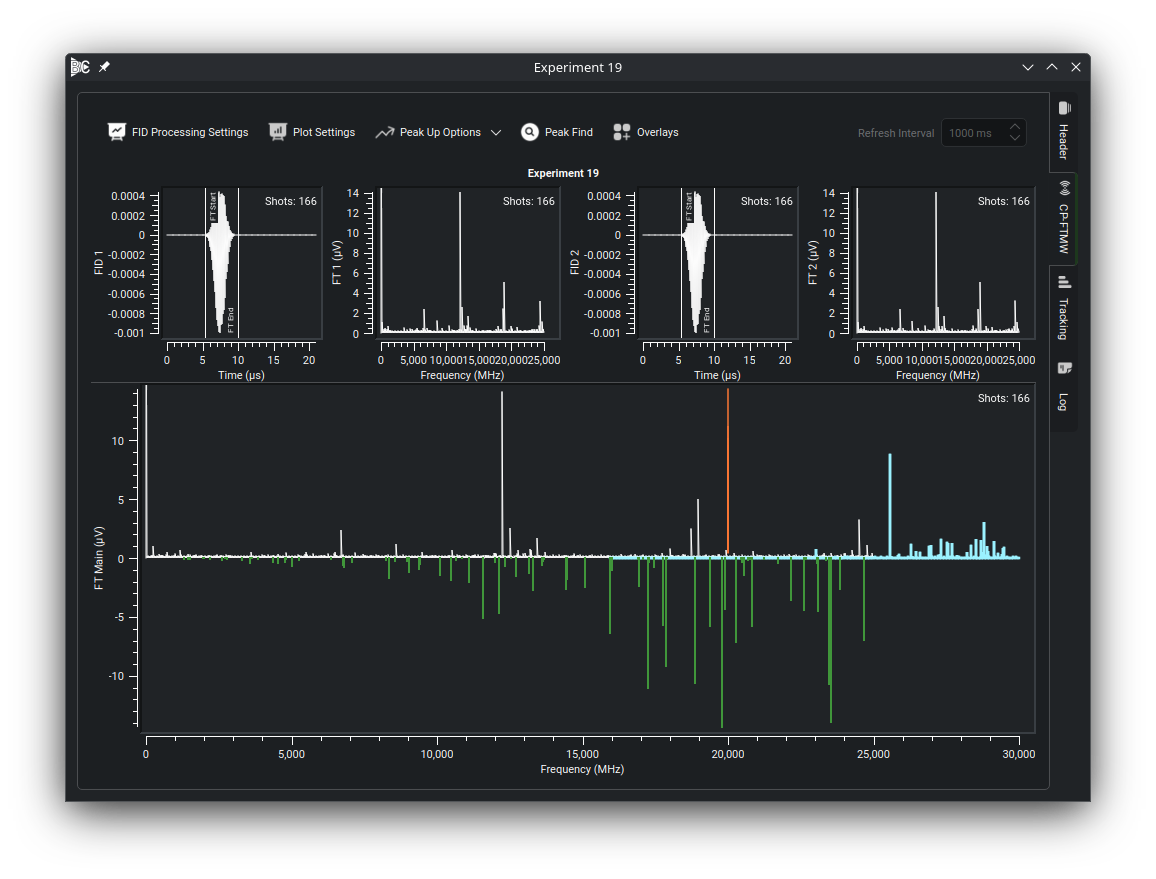
The main overlay management interface is accessed through the Overlays button in the FTMW toolbar, identified by the squares-plus icon.
Types of Overlays
Blackchirp supports three distinct types of overlays, each optimized for different data sources and use cases:
Blackchirp Experiment Overlays
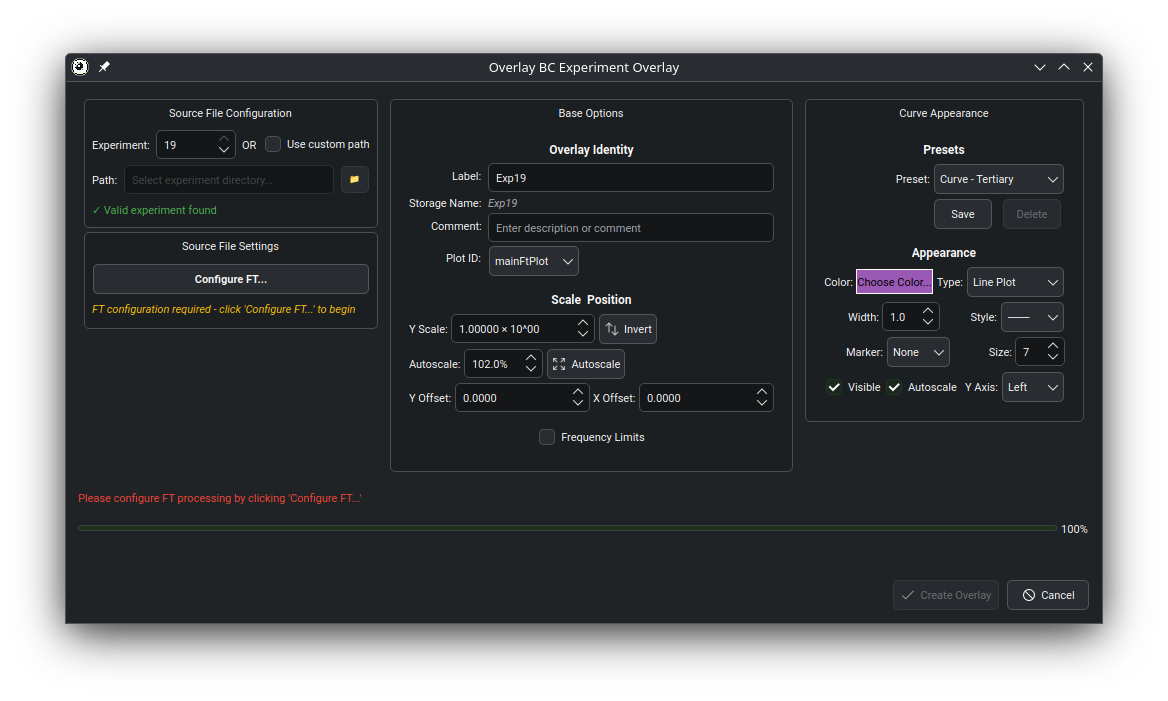
Purpose: Overlay data from other Blackchirp experiments for direct experimental comparison.
Use Cases: - Comparing spectra under different experimental conditions (e.g., discharge on vs. off) - Overlaying reference measurements or background spectra - Analyzing spectral changes over time or experimental parameters
Key Features: - Direct integration with Blackchirp’s native data format - Automatic preservation of experimental metadata (frequency settings, shot counts, LO frequency) - Seamless scaling and offset capabilities - Fast loading and processing of experiment files
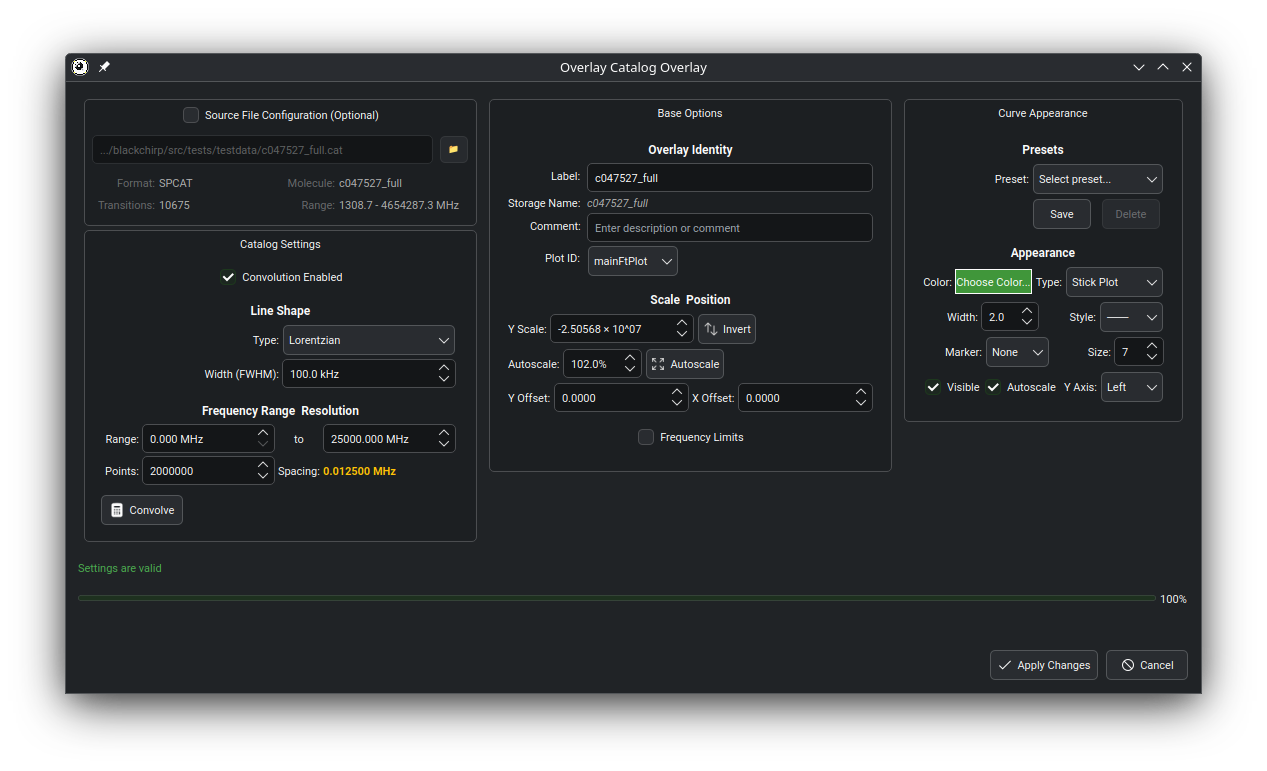
Catalog Overlays
Purpose: Display theoretical spectroscopic predictions from fitting softwave.
Supported Programs: - SPCAT: Standard spectroscopic catalog program - XIAM: Internal rotation analysis program - Other catalog formats may be added in the future
Key Features:
- Convolution Capabilities
Transform stick spectra into realistic lineshapes using:
Lorentzian lineshapes: Approximation for non-windowed spectra
Gaussian lineshapes: Suitable for simulating specrtra with applied window functions
Configurable linewidth: User-defined FWHM values in kHz
Frequency range control: Specify convolution range and number of points
Background processing: Progress tracking for large datasets with cancellation support
- Data Management
Frequency filtering: Retain only transitions within specified frequency ranges
Metadata preservation: Retain source program information, molecule names, and quantum numbers
Intelligent caching: Optimized performance for repeated convolution operations
Format flexibility: Automatic parsing of various catalog file formats
Generic XY Data Overlays
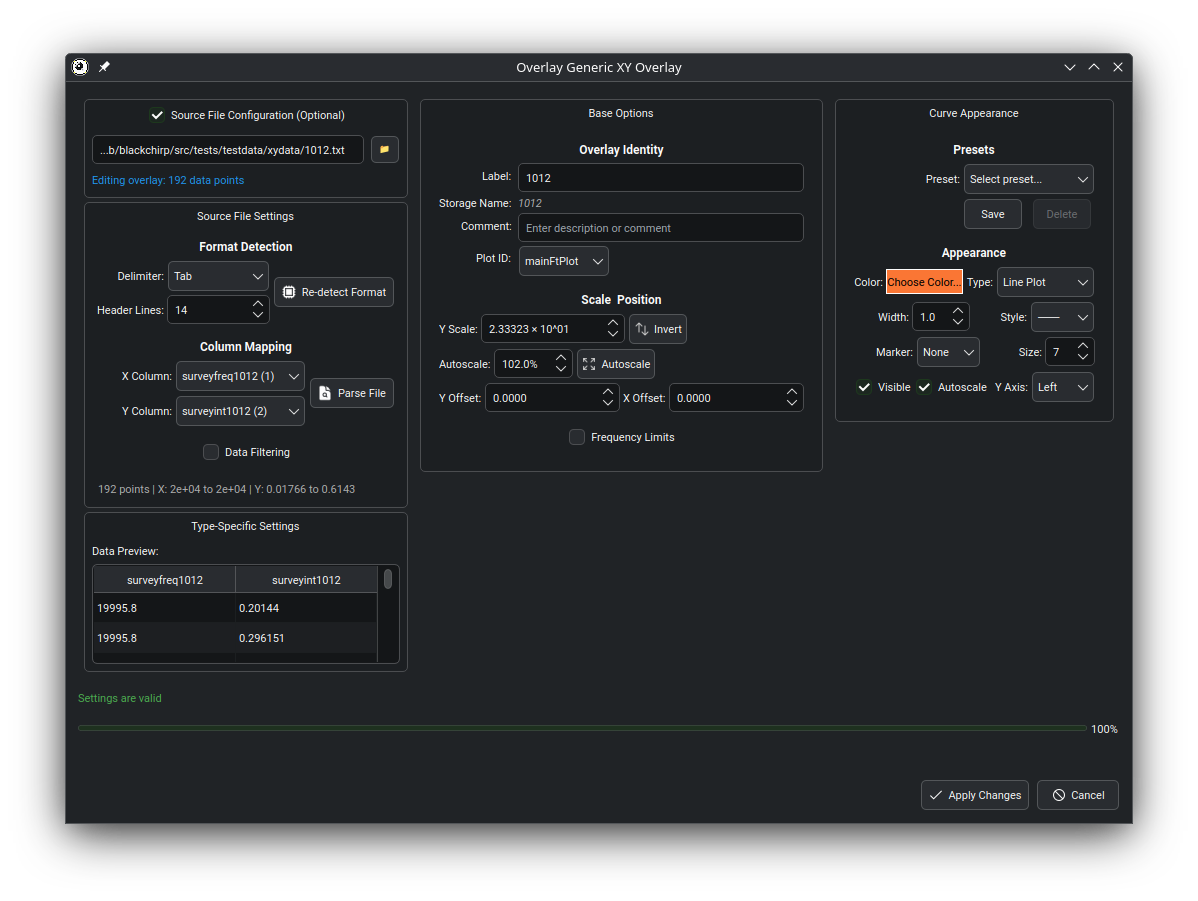
Purpose: Import arbitrary XY data from text files for flexible data visualization.
Supported File Formats: - Comma-separated values (CSV) - Tab-separated values (TSV) - Space-delimited text files - Semicolon-delimited files - Custom delimiter formats
Key Features:
- Intelligent File Parsing
Automatic format detection: Blackchirp automatically detects delimiter types and file structure
Flexible column mapping: Choose which columns represent X and Y data
Header handling: Configure number of header lines to skip
Data validation: Real-time validation with error reporting
- Data Preview and Validation
Live preview table: See parsed data before applying the overlay
Statistical information: View data point counts, ranges, and basic statistics
X-range filtering: Limit display to specific frequency or time ranges
Error detection: Identify and handle parsing issues gracefully
Creating Overlays
Creating overlays in Blackchirp is straightforward:
Step 1: Launch Creation Dialog
Click the
Overlaysbutton in the FTMW toolbarIn the Overlay Manager, click the
Addbutton (plus icon)The unified overlay creation dialog will open
Step 2: Configure Source File
- File Selection
Click
Browseto select your data fileBlackchirp automatically detects the file type and displays the overlay type
The interface adapts to show relevant configuration options
- Format Detection
For catalog files: Program type (SPCAT, XIAM) is automatically identified
For generic files: Delimiter type and structure are detected
For Blackchirp files: Experiment metadata is loaded and displayed
Step 3: Configure Overlay Settings
The settings panel changes based on your overlay type:
- For Catalog Overlays:
Convolution Settings: Choose lineshape (Lorentzian/Gaussian) and linewidth
Frequency Range: Set minimum and maximum frequency limits
Processing Options: Configure resolution and background processing preferences
- For Generic XY Overlays:
Column Mapping: Select which columns contain X and Y data
Header Options: Specify number of header lines to skip
Data Range: Set filtering limits for the X-axis data
- For Blackchirp Experiment Overlays:
Processing Settings: Configure FT processing settings using normal Blackchirp interface
Step 4: Preview and Apply
Auto-Preview Mode: See changes in real-time as you adjust settings
Validation: Blackchirp validates all settings and reports any issues
Apply: Click
OKto create the overlay, orCancelto discard changes
Note
Large catalog files with convolution may take up to a minute to process. Blackchirp displays progress information and allows cancellation of long operations.
Managing Overlays
Once created, overlays are managed through the Overlay Manager interface:
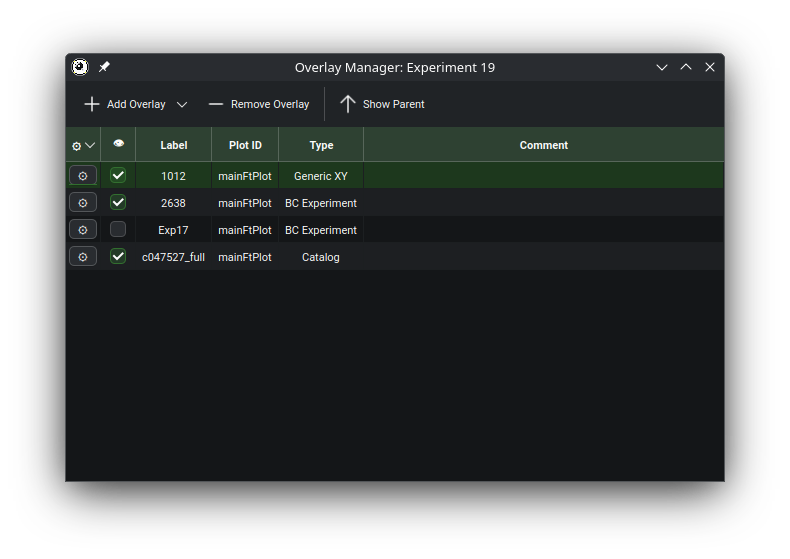
Overlay Table Interface
The overlay table provides complete control over your overlays with the following columns:
- Configure Column (Gear Icon)
Click to modify overlay settings
Opens the same configuration dialog used during creation
Changes are applied immediately with preview support
- Enabled Checkbox
Toggle overlay visibility without deleting the overlay
Disabled overlays remain in the table but are hidden from plots
Useful for comparing subsets of overlays
- Label Column
User-editable names for easy identification
Must be edited through Configure dialog
Overlay labels must be unique within an experiment
Special characters (including semicolons) are automatically replaced with underscores
- Plot Assignment
Shows which plot displays the overlay
Can create mutliple copies of an overlay to display on different plots
- Type Column
Displays overlay type (Catalog, Generic XY, Blackchirp Experiment)
Provides quick identification of data sources
- Comment Field
Optional notes and descriptions
Useful for documenting overlay purposes or data sources
Note: may not contain semicolons
Table Management Features
- Context Menu Actions
Right-click on any overlay for additional options:
Copy Settings: Copy overlay configuration for reuse
Paste Settings: Apply copied settings (y scale, offset, etc) to selected overlay
Copy Appearance: Copy curve styling (color, line style, thickness)
Paste Appearance: Apply appearance settings to selected overlay
Remove: Delete selected overlay(s) from the table
Keyboard Shortcuts
Power users can utilize keyboard shortcuts for efficient overlay management:
Ctrl+Shift+C: Copy overlay settings
Ctrl+Shift+V: Paste overlay settings
Ctrl+C: Copy appearance settings
Ctrl+V: Paste appearance settings
Ctrl+Z: Undo last paste operation
Troubleshooting
Common File Format Issues
Catalog File Problems
Issue: Catalog file not recognized or parsing fails
- Solutions:
Verify the file contains valid catalog data from supported programs (SPCAT, XIAM)
Check for corrupted or truncated files
Ensure proper file encoding (UTF-8 recommended)
File a Github issue to request support for other catalog types
Issue: Missing or incorrect quantum numbers in catalog display
- Solutions:
Some catalog formats may not include complete quantum number information
Verify the source program generated complete output
Check catalog file header for format specification
Generic XY File Problems
Issue: File parsing fails or shows incorrect data
- Solutions:
Verify delimiter detection by manually specifying the separator
Check for inconsistent formatting within the file
Ensure numeric data uses proper decimal notation (periods, not commas)
Remove or skip non-numeric header information
Issue: Data appears scrambled or in wrong columns
- Solutions:
Verify column mapping in the preview dialog
Check for embedded headers or comment lines within data
Ensure consistent column count throughout the file
Blackchirp Experiment File Problems
Issue: Experiment file won’t load or displays errors
- Solutions:
Verify the file is a complete Blackchirp experiment
Check file permissions and accessibility
Ensure the experiment contains FT data suitable for overlays
Try loading the experiment directly in Blackchirp first
Performance Considerations
Large Dataset Handling
For files containing thousands of data points or extensive catalog information:
Enable background processing: Allow convolution and loading operations to run in background
Use frequency filtering: Limit data to relevant frequency ranges before processing
Consider file preprocessing: Pre-filter large catalog files to contain only relevant transitions
Monitor memory usage: Very large datasets may require additional system memory
Convolution Performance
Catalog convolution can be computationally intensive:
Choose appropriate resolution: Higher resolution increases processing time exponentially
Optimize frequency range: Convolve only the frequency range of interest
Use caching effectively: Identical convolution parameters reuse cached results
Consider batch processing: For multiple similar overlays, process them sequentially
Interface Responsiveness
To maintain interface responsiveness during heavy overlay usage:
Disable auto-preview for large files: Turn off real-time preview updates
Limit simultaneous operations: Process overlays one at a time for complex operations
Use preview mode judiciously: Preview operations consume processing resources
Error Message Explanations
- “File format not recognized”
The selected file doesn’t match any supported overlay format
Try specifying the file type manually or converting to a supported format
- “Insufficient memory for convolution”
The convolution operation requires more memory than available
Reduce frequency range, lower resolution, or close other applications
- “Background operation failed”
A background processing task encountered an error
Check the log for detailed error information and retry the operation
- “Invalid frequency range”
The specified frequency limits are invalid or outside the data range
Verify frequency values and ensure minimum < maximum
- “Column mapping error”
The selected columns don’t contain valid numeric data
Check column assignments and verify data format in the preview
Warning
Very large catalog files (>100,000 transitions) with convolution may require significant processing time and memory. Consider filtering the catalog file to relevant frequency ranges before import to improve performance.
Note
Overlay settings are automatically saved with your Blackchirp session. When you reopen Blackchirp, previously configured overlays will be restored and available for use.