Application Configuration
The Application Configuration dialog (Settings → Application Settings) controls application-wide options that are independent of any particular hardware profile or experiment. Options are grouped into two sections: Application Settings and Data Storage.
To open the dialog: Settings → Application Settings.
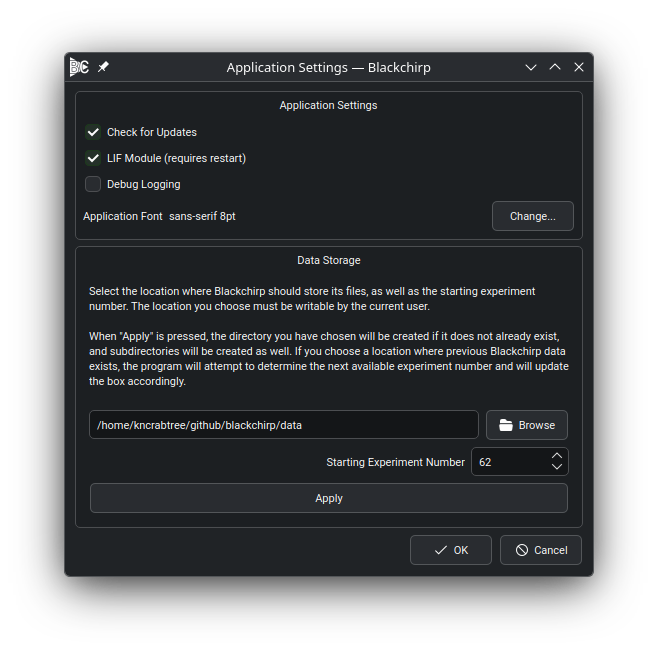
The Application Configuration dialog, showing all available options.
Options marked (requires restart) in the dialog take effect only after you close and reopen Blackchirp. All other options take effect immediately when you click OK.
Application Settings
Check for Updates
Takes effect immediately.
When enabled, Blackchirp contacts the GitHub release API once per day at
startup to check whether a newer stable release is available. The check
queries only api.github.com and downloads nothing — release artifacts
are never installed automatically. Network failures (offline machines,
restricted networks, TLS errors) are silent and logged at debug level
only; the application starts normally either way.
Default: enabled.
Disable this option on air-gapped or policy-restricted systems where any outbound HTTPS traffic is unwanted. The toggle controls only the automatic startup check; the manual Help → Check for Updates… action issues a check regardless of this setting.
Pre-releases (alpha, beta, rc) are never reported. When a
newer stable release is found, a dialog offers three choices:
Download opens the release page in the system browser. Installation is manual; Blackchirp does not auto-update.
Skip This Version suppresses further startup notifications for that specific version. Later versions still trigger the dialog. The manual action ignores the skip list, so it can be used to revisit a release the user previously skipped.
Remind Me Later dismisses the dialog. The startup check fires again the next time Blackchirp launches more than 24 hours after the last successful check.
When a newer release is known to be available, the Help toolbar button is tinted with the informational palette color and the Check for Updates… action inside the menu shows a sparkles icon and the available version number. The indicator clears when a subsequent check confirms the local build is up to date.
The Blackchirp Viewer shares this setting and the once-per-day throttle with the acquisition application: a recent check from either app suppresses the next from the other.
LIF Module
Requires restart.
Enables or disables the Laser-Induced Fluorescence hardware and associated UI components. When disabled, all LIF-related widgets are hidden and LIF hardware types are excluded from experiment configuration. When enabled, LIF hardware types appear in the Hardware Selection dialog and the LIF tab becomes accessible in the main window.
Default: enabled.
Enable this option only if your instrument includes a LIF channel. Disabling it on a system without LIF hardware has no functional consequence but keeps the interface uncluttered.
Debug Logging
Takes effect immediately.
When enabled, Blackchirp writes debug-level log messages to a dated file
(debug_YYYYMM.csv) inside the log subdirectory of the data storage
path. Normal informational and warning messages are written regardless of
this setting.
Default: disabled.
Enable debug logging temporarily when diagnosing communication failures or unexpected behavior. Disable it during normal operation to reduce disk usage.
Application Font
Takes effect immediately.
Sets the font used throughout the application. Click Change… to open the system font picker. The preview label in the dialog updates immediately to reflect your selection.
Default: sans-serif, 8 pt.
Data Storage
The Data Storage section contains the same save-path widget shown during Data Storage. Use it to change the data directory or reset the starting experiment number at any time after initial setup.
Click Apply within this section to validate the path before clicking OK. Blackchirp does not overwrite existing data when you change the path; it only creates the four standard subdirectories if they are absent.
Configuration File
Blackchirp stores its settings in a system-standard location:
Linux —
~/.config/CrabtreeLab/Blackchirp2.confmacOS —
~/Library/Preferences/CrabtreeLab.Blackchirp2.plistWindows — registry key
HKCU\Software\CrabtreeLab\Blackchirp2
The Blackchirp2 portion of the path is versioned to the major
release, so each major version maintains its own settings independent
of any other major version installed on the same machine.
Note
If you are upgrading from Blackchirp 1.x, the 1.x settings file is not read by Blackchirp 2. See Migrating from Blackchirp 1.x to 2.0 for the recommended workflow for moving an existing instrument over.