Blackchirp Viewer
blackchirp-viewer is a standalone application for opening and inspecting
saved experiments. It ships in the same binary package as blackchirp:
installing from a release package places both executables side by side.
Building from source produces both via the blackchirp and
blackchirp-viewer CMake targets.

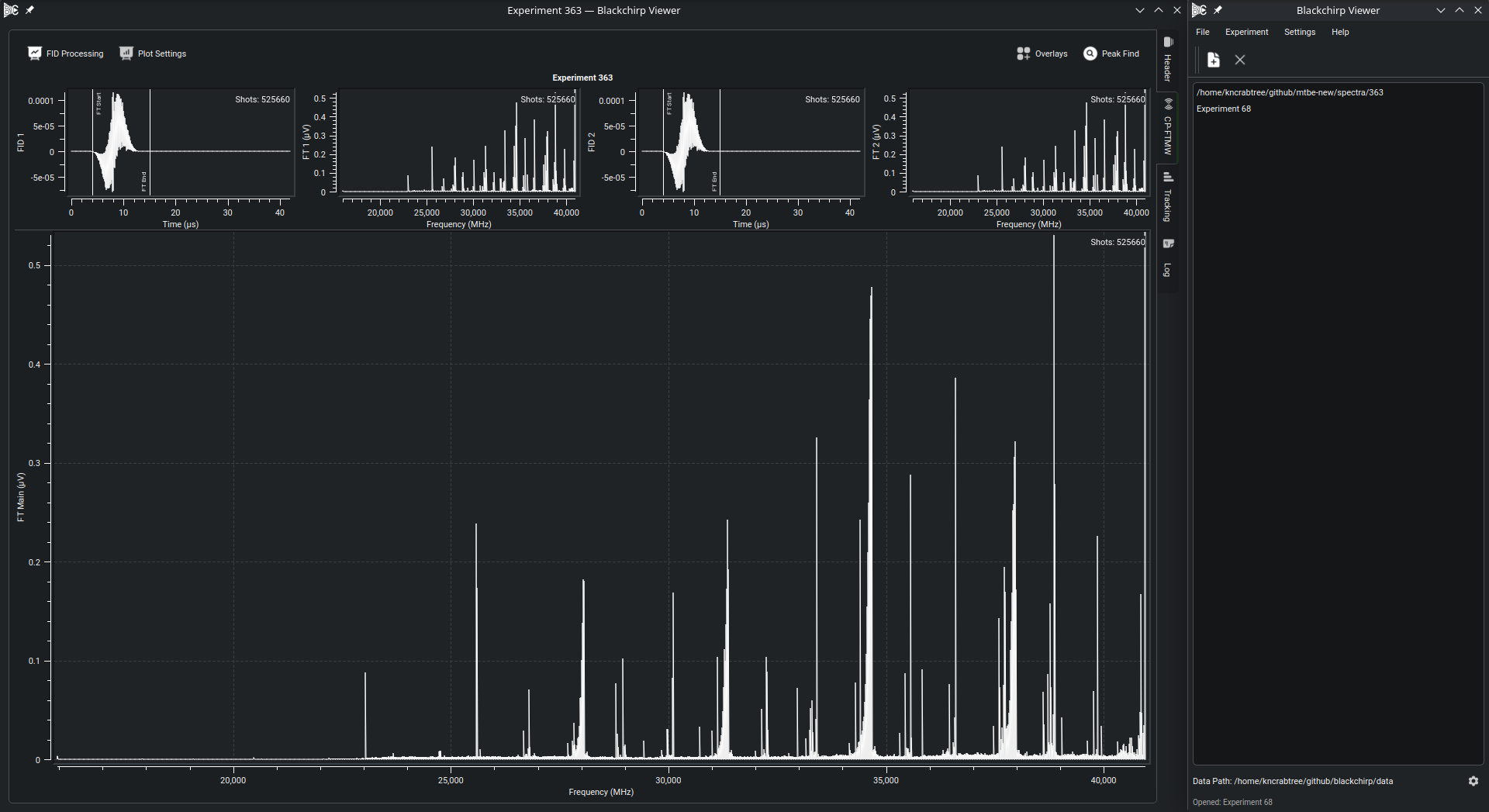
The Blackchirp Viewer launcher (right) lists previously opened experiments and shows the active data directory, with a cog button to change it, at the bottom of the window; loading an experiment opens it in its own experiment view window (left), with the FID and FT plots, processing controls, overlays, and peak-find tools.
Purpose
The viewer inspects saved data without access to the configured hardware. Typical uses:
Reviewing data on a laptop or any machine that does not have the spectrometer hardware attached.
Working alongside a live acquisition:
blackchirpholds hardware resources while running;blackchirp-viewercan open saved experiments at the same time without interfering.Sharing data with collaborators who do not have Blackchirp’s hardware configured on their machines.
Launching the Viewer
Run blackchirp-viewer from the command line, the application launcher, or
the Start menu, depending on your platform. No special arguments are needed.
The viewer opens to a small launcher window from which you can browse to and
open a saved experiment; each opened experiment appears in its own experiment
view window, so several experiments can be compared side by side.
Configuring the Data Directory
The viewer needs to know where saved experiments live in order to load them by experiment number. On startup it picks the active data directory in this order:
The viewer’s own override, if one has been set under the Settings menu.
blackchirp’s configured save path, read from the same per-user settings file the acquisition application writes.
The active directory appears on a label at the bottom of the launcher
window; clicking the label opens that directory in the system file manager.
The cog button beside it — or Settings → Set Data Path… — opens a
directory picker that records an override in the viewer’s own settings
without touching blackchirp’s configuration. Settings → Reset to
Blackchirp Default discards the override and re-reads blackchirp’s
save path.
The data directory governs only experiments opened by number — those loaded through the Experiment → Open dialog with Specify custom path unchecked, and the Open Recent entries. Experiments stored elsewhere (for example, an isolated copy shared by a collaborator) can always be opened by checking Specify custom path in the Open dialog and browsing to their folder, regardless of where the active data directory points.
Inspecting Loaded Experiments
An experiment view window is the same surface the main blackchirp
program opens through its View Experiment workflow: the same FT and
FID plots, processing controls, overlay tools, peak finder, aux-data
browser, and per-experiment summary. Those tools are documented in the
Inspecting Data chapter —
Viewing FTMW Data, Overlays, and
Plot Controls apply unchanged here.
Recomputed processing settings and configured overlays can be saved back to the experiment, so they are reapplied the next time it is opened. The captured FIDs and aux-data records themselves are not modified.
Limitations
The viewer is intentionally hardware-free and does not modify acquired data:
Acquired data is read-only: the FIDs and aux-data records captured at acquisition time cannot be altered or re-acquired from the viewer.
No hardware: the viewer does not communicate with any instrument. There is no Hardware menu, no communication setup, and no status panel.
No live-session tabs: the Log tab and the live Rolling Data view are absent because they reflect activity during an acquisition. An Aux Data tab is present whenever the experiment recorded aux data.
No experiment wizard: new experiments cannot be started from the viewer.