Library Status
Some hardware drivers depend on a vendor-supplied library installed on the host computer. The Library Status tab of the Hardware Configuration dialog (Hardware → Hardware Selection) lists every such library Blackchirp supports, shows whether each was located, and lets you supply custom search paths when the library lives outside the system default locations.
Blackchirp itself does not need any of these libraries to start; only the hardware that depends on a particular library is affected when it is missing.
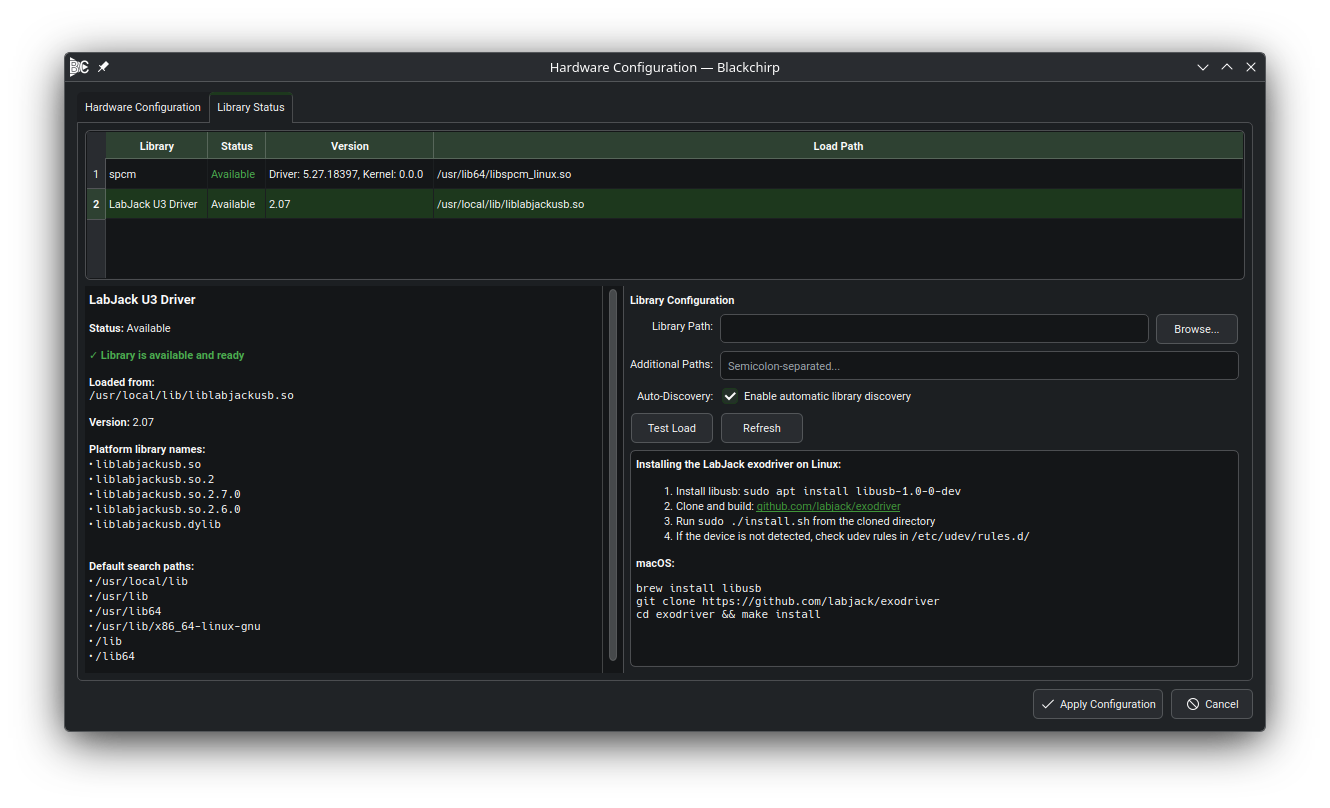
The Library Status tab. The overview table shows load status for each vendor library; selecting a row exposes search-path configuration and installation guidance.
Overview Table
The table at the top lists every recognized vendor library with four columns:
- Library
The library base name.
- Status
Available — the library was found and all required symbols resolved (green). Not Found — loading was not attempted, or the library was not located on any search path (red). Error — loading was attempted but failed (missing symbols, wrong architecture, or another loader error; red).
- Version
The library’s version string if it exposes a version query, or Unknown otherwise.
- Load Path
The filesystem path the library was loaded from, or Not loaded.
Click Refresh (in the configuration panel) to re-attempt loading with the current search-path settings.
Configuration Panel
Select a row in the overview table to display and edit the search-path settings for that library.
- Library Path
A specific file path or directory to try first. Use Browse… to open a directory picker. Leave blank to rely on automatic discovery and the additional paths only.
- Additional Paths
A semicolon-separated list of directories to search in addition to the automatic discovery paths. Useful when the library is installed in a non-standard location.
- Auto-Discovery
When checked (the default), Blackchirp searches the platform default paths in addition to any paths you supply. Uncheck this to restrict loading to the paths you list explicitly.
Edits to the configuration panel are staged: they do not take effect until you click OK in the enclosing Hardware Configuration dialog. Modified controls are highlighted while staged changes are pending, and the panel label shows an asterisk.
- Test Load
Attempts to load the library with the current settings (staged, if you have staged changes; otherwise the active settings) and reports success or failure in a popup. Use this to validate a new path before committing.
The lower portion of the configuration panel shows platform-specific installation guidance for the selected library.
Vendor Libraries
LabJack U3 Driver
Used by the LabJack U3 IO-board driver.
- Linux and macOS
Blackchirp loads
liblabjackusb.so(Linux) orliblabjackusb.dylib(macOS) from the LabJack open-source exodriver. Install it from source:# Ubuntu / Debian sudo apt install libusb-1.0-0-dev git clone https://github.com/labjack/exodriver.git cd exodriver && sudo ./install.sh
The installer places the library in
/usr/local/lib/, which is searched automatically. Add your user to theplugdevgroup (or your distribution’s equivalent) to grant USB access:sudo usermod -aG plugdev $USER
Log out and back in for the group change to take effect.
- Windows
Blackchirp loads
LabJackUD.dllfrom the LabJack UD driver package (64-bit). Download and run the LabJack Windows installer from the LabJack website. The installer places the DLL in the Windows system directory, which is searched automatically. A system restart is typically required after installation.
Spectrum Instrumentation (spcm)
Used by the Spectrum Instrumentation M4i/M2p digitizer drivers. The
library base name is spcm; platform-specific names tried include
spcm_linux (Linux), spcm64.dll (Windows 64-bit), and
spcm.dll (Windows 32-bit).
- Linux
Install the Spectrum kernel module and driver from the Spectrum Instrumentation download page. The installer places
libspcm_linux.soin the system library path (typically/usr/local/lib/or/opt/spectrum/lib/); both are searched automatically. Runsudo ldconfigafter installation to refresh the linker cache.- Windows
Run the Spectrum driver installer as Administrator. The DLL is registered in the Windows system directory and found automatically. A system restart is required after installation.
- macOS
Spectrum hardware is not officially supported on macOS. If you have a development build of the Spectrum library for macOS, supply the path manually via Library Path.
Troubleshooting
If a library shows Error status after installation:
Click Refresh to re-attempt loading without restarting Blackchirp.
Check the Details pane next to the configuration controls for the specific error message and the paths that were tried.
If the library lives in a non-standard location, enter the directory in Library Path or Additional Paths and click Test Load.
On Linux, run
sudo ldconfigto refresh the dynamic-linker cache, then click Refresh.Confirm that the installed library’s architecture (32-bit vs. 64-bit) matches the Blackchirp binary you are running.