Reloading and Editing a Script
When a Python driver is in use, the per-device hardware dialog gains a Python Script group at the top of its control panel. This group opens the script in an external editor and reloads it after editing, without restarting Blackchirp.
Open the hardware dialog from the device’s entry on the
Hardware menu or from its row in the Status Panel (see
Hardware Dialog). The Python controls appear above the
type-specific control widget; a profile backed by
PythonFlowController, for example, shows the Python controls
and the standard gas-control widget on the same dialog.
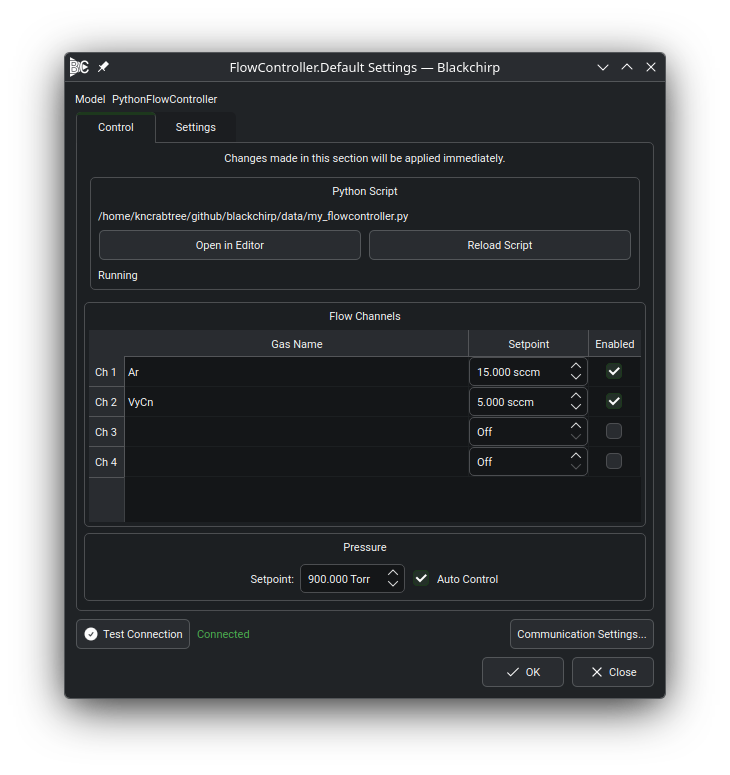
HwDialog for a PythonFlowController profile. The Python
Script group sits at the top of the Control tab and shows
the current script path, the Open in Editor and
Reload Script buttons, and a status label (Running)
reporting the most recent reload result. The standard
gas-control widget appears below it on the same tab.
Open in Editor
Open in Editor hands the script path to the operating system’s
default handler for .py files. The button is disabled when the
profile has no script path set; configure the path from the
Hardware Configuration dialog first (see Selecting a Python Driver).
Reload Script
Reload Script stops the current Python subprocess and launches
a fresh one with the same script path, class name, and environment.
The status label changes to Reloading... while the new process
starts and switches to Running once test_connection succeeds.
What survives a reload
A reload tears down the Python subprocess but leaves the C++
HardwareObject intact, including:
All persistent settings stored through the settings registry.
The communication-protocol object (
self.commreaches the same serial port, TCP socket, GPIB instrument, or virtual backend before and after the reload).The hardware object’s worker thread and its signal/slot connections, so any widget bound to this device continues to receive updates.
The active loadout, current FTMW preset, and any in-progress experiment configuration.
Nothing held in memory by the Python script itself survives:
module-level variables, instance attributes set in initialize
or accumulated during runtime, and any cached hardware state on the
Python side are gone. initialize is called again on the new
process. Persistent state should therefore be stored through
self.settings rather than in plain Python variables.
Error feedback
If the new subprocess fails to start, the status label switches
to the error theme color, shows Error: <message>, and stays
that way until the next successful reload. The full message is
also available as a tooltip on the label, which is useful when a
long Python traceback wraps off the visible area. Common failure
modes include:
Missing or unreadable script path. The label reports that the script path is empty or that the file cannot be opened. Use the Hardware Configuration dialog to set or correct the path (see Selecting a Python Driver).
Syntax errors in the script. Python’s traceback is forwarded from the subprocess and surfaced in the status label, with the full traceback also written to the hardware log panel. Fix the syntax error in your editor and click Reload Script again.
Missing or misnamed class. If the configured class name is not defined in the script, the label reports that the class could not be loaded. Either rename the class in the script or update the Python Class field on the profile to match.
Import errors. A failure to import a module the script depends on is reported the same way as a syntax error. Check that the package is installed in the environment configured for the profile (see Selecting a Python Driver).
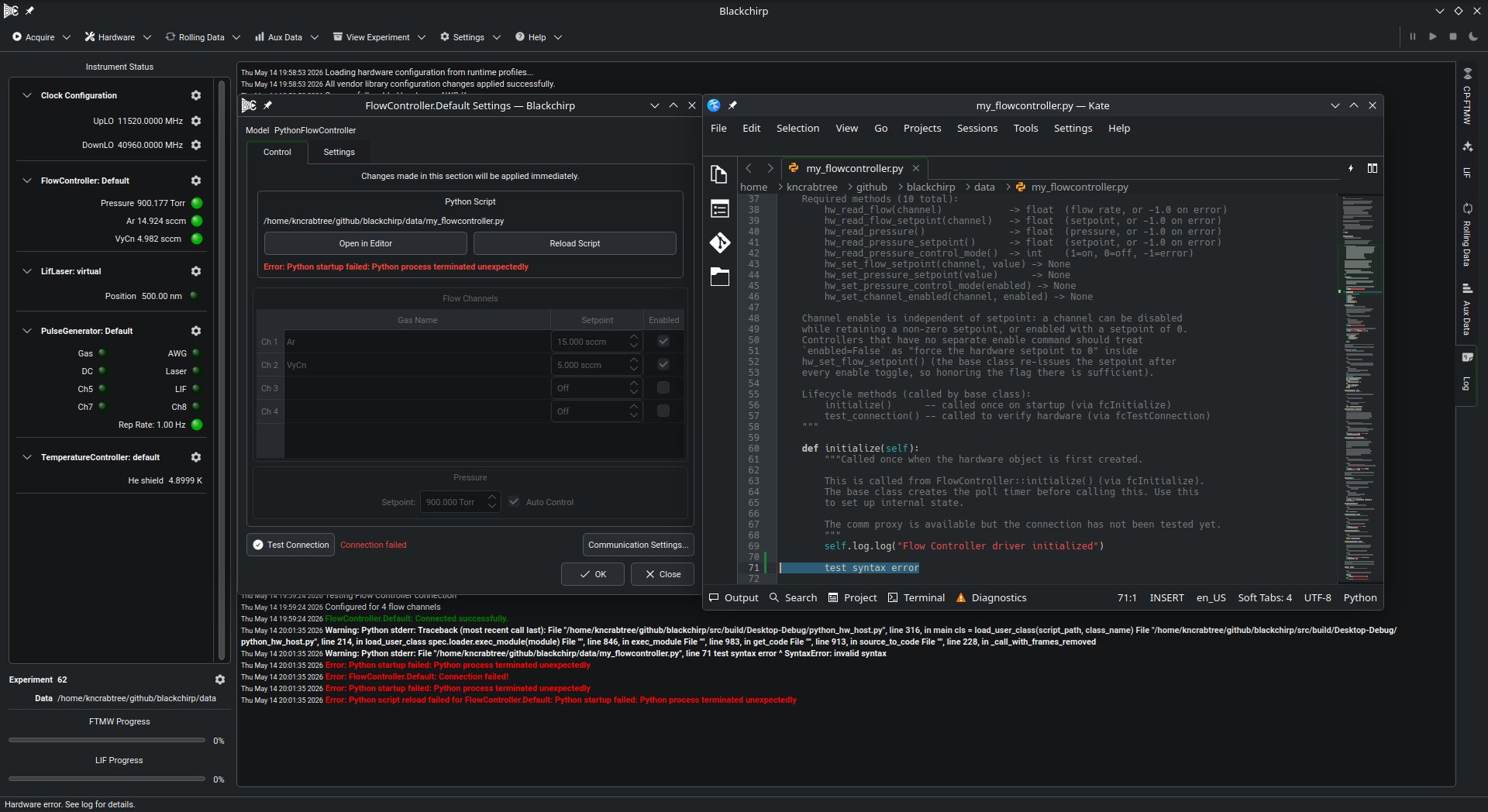
The error state after a failed reload, captured alongside the
tools the user typically reaches for next. The HwDialog
Python Script group shows Error: followed by the
exception message in red; the Log tab below it carries the
full Python traceback (also available as a tooltip on the
status label); and the external editor on the right shows
the script with the offending line highlighted.
Once the underlying problem is fixed, click Reload Script again — there is no need to close the dialog or restart Blackchirp.