Quick Experiment
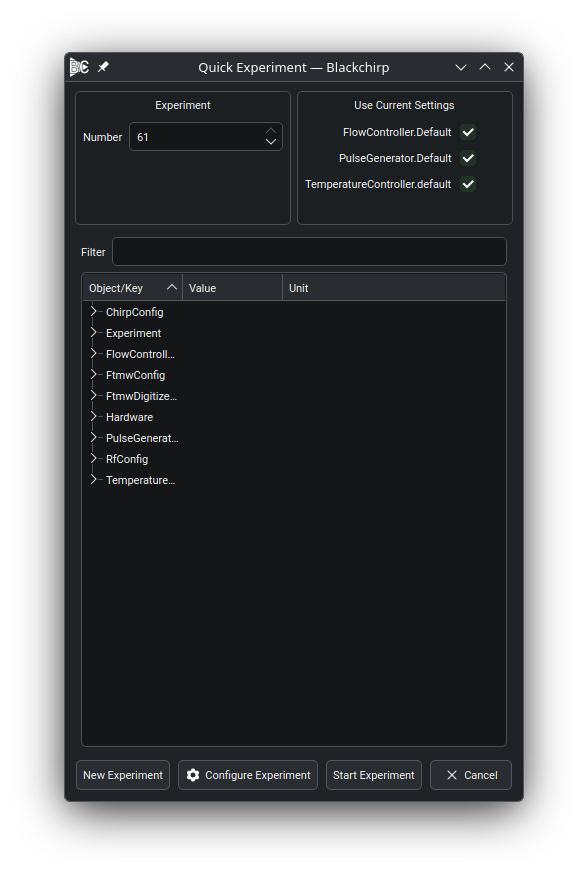
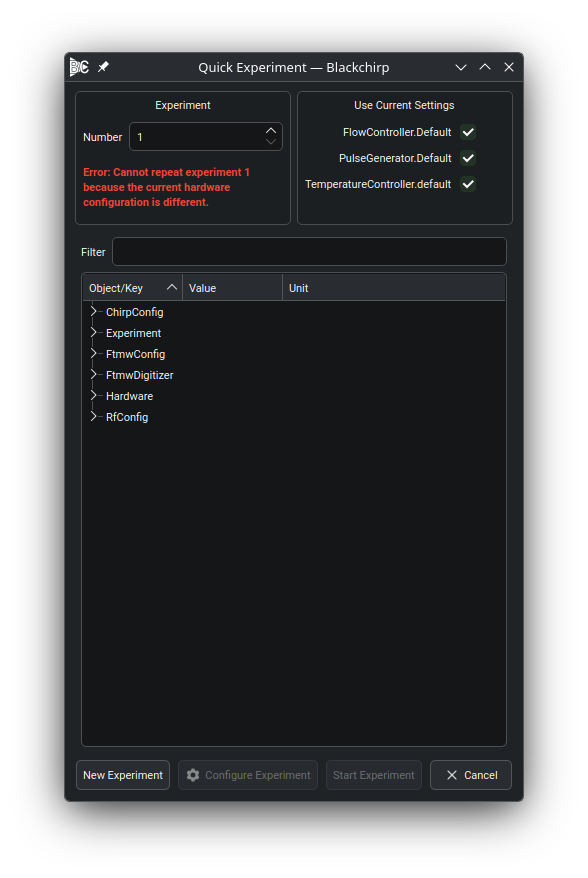
The Quick Experiment action initializes an experiment using some or all of the settings from a previous experiment. Select the desired experiment to repeat using the number field; the details of the selected experiment are shown in the lower panel.
Note
Blackchirp only supports repeating experiments stored in the current Data Storage Location.
Hardware compatibility check. Blackchirp compares the hardware
map (loadout) of the selected experiment against the active hardware
map. Each map entry records the hardware key and the driver that was
active at save time. If the two maps differ — a device missing,
added, or replaced with a different driver — the Configure
Experiment and Start Experiment buttons are disabled and an
error message is shown.
A major-version mismatch also blocks repeating an experiment. A minor-version mismatch produces a warning and strongly recommends configuring the experiment manually before starting.
Use Current Settings. The panel on the right side of the dialog lists each optional hardware device (Pulse Generators, Flow Controllers, Pressure Controllers, IO Boards, and Temperature Controllers) with a checkbox labeled Use Current Settings.
When a box is checked, the experiment uses the live settings for that device rather than the values saved with the original experiment.
By default all optional hardware boxes are checked, so pulse timings, flow setpoints, and similar day-to-day parameters are taken from the current hardware state.
Unchecking a box causes the saved values to be restored instead.
Action buttons.
New Experiment— discards all settings from the selected experiment and opens the standard experiment wizard.Configure Experiment— opens the experiment wizard with all values pre-populated from the selected experiment (respecting theUse Current Settingschoices). Available only when hardware is compatible.Start Experiment— immediately starts the experiment without opening the wizard. Available only when hardware is compatible.